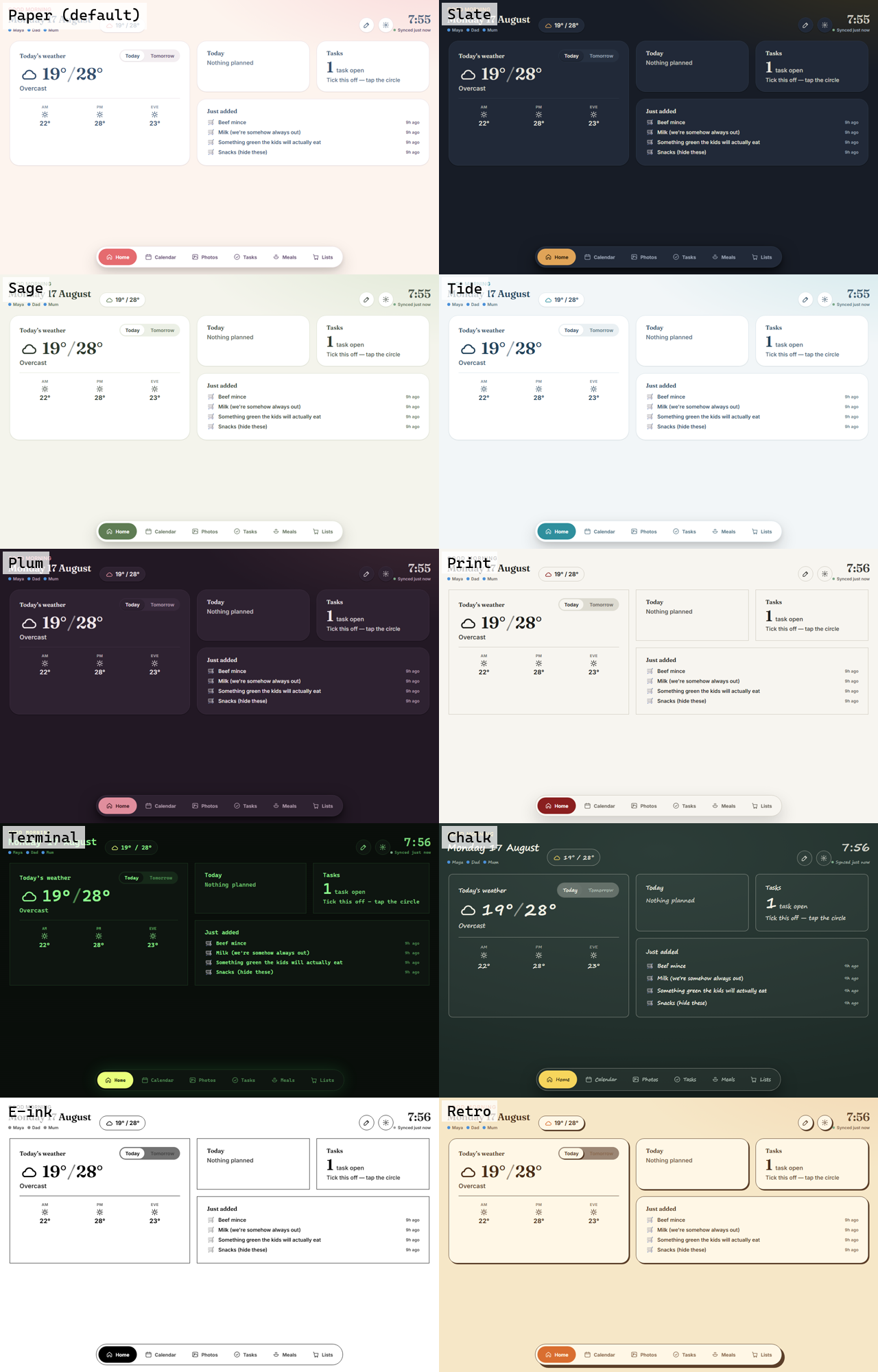
Nook is the family calendar for your kitchen wall.

You don't have to be the family calendar. Plans, chores, meals and lists live on a screen everyone walks past, and everyone can add to them — from their own phone, or by tapping the wall itself.

Photograph an invitation and it's an event. Works with the Google Calendar you already use, on a tablet you already own.

No new screen to buy. About 10 minutes to set up.

Everyone sees it here Add from anywhere

Shared calendars work. Until nobody opens them.

Somehow, one person always ends up knowing everything. When swimming starts. When the dentist is. What's for dinner. Who needs picking up. What you're out of.

Nook gets all of that out of your head and onto the wall.

Anyone can add something — from their phone, or on the wall itself — and it shows up for everyone. No reminding people to check an app. They just see it.

From a card in a school bag to everyone's calendar.

Everything Nook does, in the order a family actually meets it.

The two bits that save the most time.

Photograph it. It's on the calendar.

A birthday invitation, a school newsletter, a whole term's sports fixtures. Take a photo and Nook reads the dates, times and places off it, then shows you what it found before anything gets added. A month of fixtures becomes a month of events without typing any of them.

It does recipes too: photograph one and the ingredients go onto your shopping list, skipping whatever's already there.

Works with the calendar you already use.

Connect your Google account and everything on the family calendar lands in yours, so you get the reminders on your phone the way you always have. Nobody has to move off the calendar they already live in.

Nook makes its own calendar in your Google account, so your work meetings stay your work meetings. Nothing of yours ends up on the kitchen wall.

And everything else in one place.

Calendar

Everyone's week, in one place.

Chores

Share the jobs, and get them done.

Meals

Plan dinner before 5pm. Most days.

Lists

Organised lists that actually get used.

And when nobody needs the calendar, Nook turns into a family photo frame.

What it looks like on the wall.

Use the arrows, or swipe.

From anyone's phone to the wall in seconds.

You add football practice from the school car park.
Your partner adds the dentist from their desk at work.
The kids see it walking through the kitchen.
Nobody asks you what time football starts.

The screen is up to you.

You bring the screen. Nook makes it useful again. Tap a card for the setup.

Most families start with a tablet they already have, in about ten minutes.

Simple pricing. No new hardware.

Use Nook on your phones, or put it on the wall for the whole family to see.

Family

$39/year

One shared place for your family's calendar, chores, meals and lists.

  • Shared family calendar
  • Chores and routines
  • Meal planning
  • Shopping and household lists
  • Unlimited family members
  • 10 photo scans a month
Try Nook free

No special hardware. No $300 screen to buy.

Nook is free during the beta. Paid plans will start at $39/year after launch.

And you're not buying another gadget.

What three years costs, with the screen included.

  Nook Skylight Calendar 2 Hearth Display Cozi Gold
The screen $0 you already have one $299.99 $699 None
Every year $69 $79 from $86.40 $39
Three years, all in $207 $536.99 $958.20 $117
Wall display Yes Yes Yes No
Screen still yours if you stop paying Yes No No n/a

Prices as published August 2026: Skylight, Hearth, Cozi.

Questions

Do I have to buy any devices?

No. Nook runs on hardware you already have: a tablet, a spare monitor, an old laptop. If you'd rather buy a screen for it, a cheap tablet does the job. We don't sell hardware and take no cut.

Is it hard to set up?

For a tablet or a monitor, no. You open a web page on the screen and tap a button. A flush wall-mounted touchscreen takes longer and has its own guide, but it's optional and most people skip it.

Will it work on my old iPad, or a Fire tablet?

iPads from 2017 onwards are comfortable. A 2014 to 2016 iPad works, minus a couple of the translucent effects. Fire tablets work through Silk, though on older ones you may want to install Chrome or Firefox first. Anything running Chrome or Safari from 2020 onwards is fine.

Can it stay on all day?

Yes. Set the screen never to sleep and it stays up, dropping into your photos when nobody's touched it. On an iPad, Guided Access pins it to Nook so nobody wanders into Safari.

One warning: a tablet left plugged in at 100% for months will eventually swell its battery. True of any always-on tablet. A cheap timer plug that charges it a few hours a day sorts it, and it's why some people use a monitor instead.

Does it need a touchscreen?

No. A plain monitor is fine, and plenty of people run it that way, adding things from their phone. With a touchscreen, everything on the wall is tappable and there's a keyboard on screen.

Does it sync with Google or Apple Calendar?

Google, yes — and it's optional. Connect your account and anything on the family calendar shows up in yours, so you get reminders on your phone the way you already do. Nook creates its own calendar in your Google account rather than writing into your personal one, so your work meetings never appear on the kitchen wall, and it only reads the calendars you pick. Disconnect any time from More › Google Calendar.

Apple Calendar isn't there yet. Say if that's a dealbreaker for you.

What happens to the photos I scan?

The photo is sent to Google to be read, on the paid tier that isn't used to train their models. Nook keeps it for 30 days so you can go back to a scan, then deletes it automatically. Scanning is off until you turn it on, and you can turn it off again whenever you like.

Scanned photos never appear on the wall display or in your family photos, and nothing is added to your calendar or lists until you've seen what it read and tapped Add.

Do the kids need accounts?

No. Everyone gets a name and a colour. The app asks who you are rather than making a nine year old remember a password.

What happens if I stop paying?

You keep read access to your calendar and can export everything. The screen was yours to begin with, so it goes back to being a tablet.

When can I use it?

Right away. Create an account and your calendar is ready in a couple of minutes. Free through the beta, and a lower price after.